The G-OFF Guide
🐛 Alpha Testing & Feedback
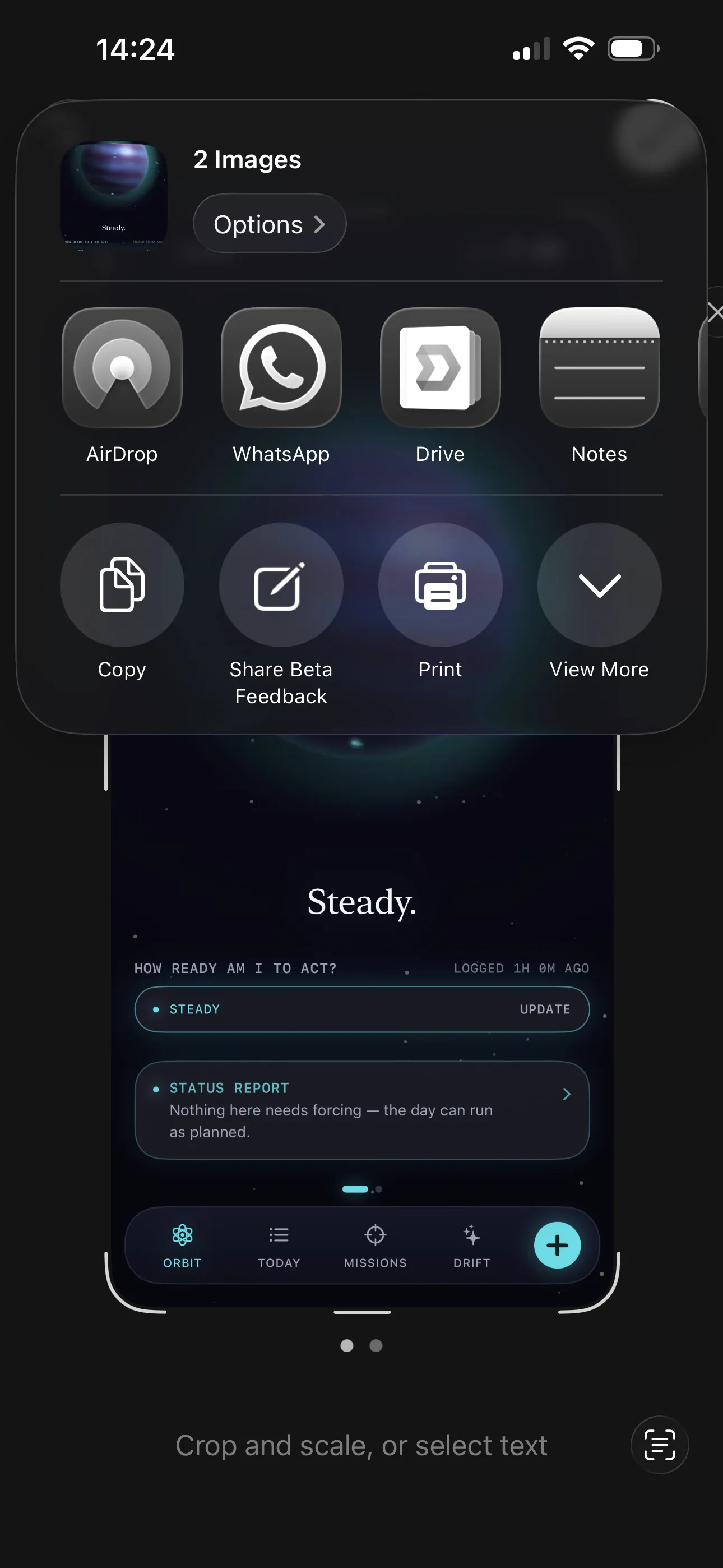
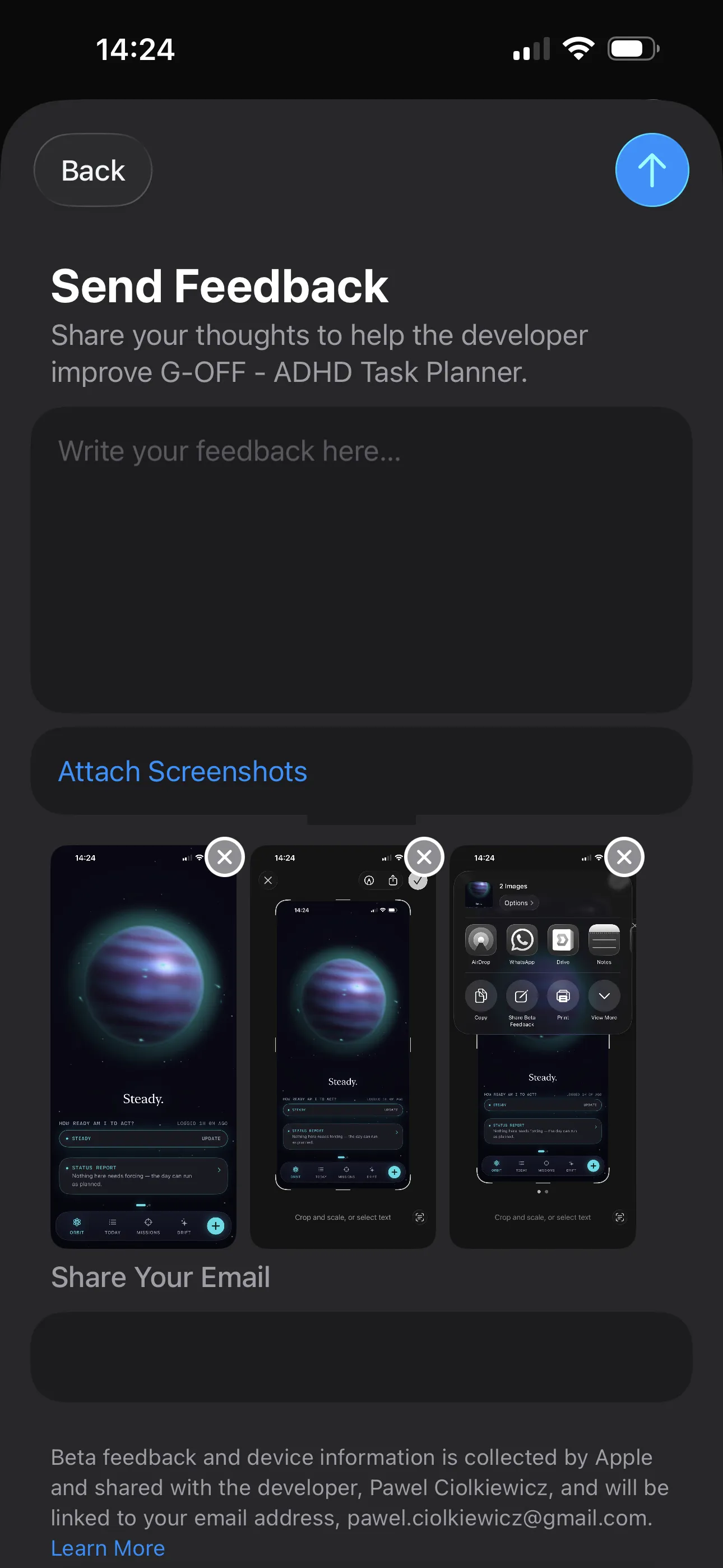
To report a bug or suggest a tweak, just take a screenshot on your iPhone. Tap the screenshot preview in the corner, tap the Share icon, and select Share Beta Feedback. Write a quick note and hit send!
What G-OFF is
Most to-do apps make you feel bad by counting exactly how many things you haven’t done. G-OFF doesn’t.
It uses gravity instead. Unfinished work makes your planet heavy. Finishing things builds momentum and makes it light. Nothing is tallied. No shame.
There is one number behind everything — a reading from −100 to +100 — and it drives a planet you can watch. Heavy and sluggish when there’s drag. Weightless and fast when there’s momentum. You never have to read the number. The planet is the number.
The word “overdue” does not appear anywhere in this app. Work that hasn’t happened yet is unfinished, and nothing counts it up. A tally of what you’re behind on is precisely the thing G-OFF exists to remove.
What the number means
| Reading | What you’ll see |
|---|---|
| −100 to −60 | Overloaded |
| −60 to −20 | High Friction |
| −20 to 20 | Steady |
| 20 to 60 | In Flow |
| 60 to 100 | Peak Drive |
The same five words describe the planet, the status line underneath it, and which deck Orbit opens to first — they never disagree with each other.
The number keeps computing out to the full ±100 range behind the scenes — the planet’s own look just finishes changing by ±80, since a −95 day and a −82 day don’t need to render any differently. Anything that shows you the number directly still shows the real one.
Living Planet design. The planet has three anchor states: Anchored at −100, Holding at 0, and Floating at +100. There are no discrete states in the render layer — everything is continuous interpolation, guided by the principle “emotions as weather, values as compass.”
The five words
| Word | What it means |
|---|---|
| Orbit | The planet, plus a swipeable deck of ready-to-start tasks — swipe between the two. |
| Today | Your actual day. What you’ve committed to. |
| Missions | Where work is filed. Mission → objective → task. |
| Drift | Anything with no mission and no date. |
| Gravity | Drag from unfinished work, against momentum from what you finish. |
Writing something down
Type it the way you’d say it. Times, dates, durations and #tags are pulled out automatically.
Call Sam tomorrow at 14 for 2h #meeting
- date and time
- duration
- tag
One thing worth knowing: include a day word. “tomorrow at 14” is understood whole; a bare “at 14” gives you the time but leaves a dangling “at” in the title.
The same typing works for repeats — “read every day”, “gym on weekdays”, “report every Monday” all set a recurring schedule as you write it. A plain date like “call mom on Friday” stays a single Friday.
Core principle. Writing something down never makes the planet heavier.
This is enforced at the physics layer with the unit test unscheduledBacklogIsWeightless.
The Science: ADHD brains lose momentum when forced to click through complex calendars and dropdown menus. Natural language entry removes that friction, letting you capture a thought before it vanishes.
The features
Each of these has a hint inside the app — a soft ring around the control the first time you’re somewhere it lives. The rings stop on their own after two days, read or not, and you can turn them off entirely from any hint sheet.
Today
What it does. Today is what you’ve actually committed to, in two layouts — a visual Timeline (a spine of timed things) and a plain List — that draw from the same scheduled tasks. Retapping the Today tab flips between them.
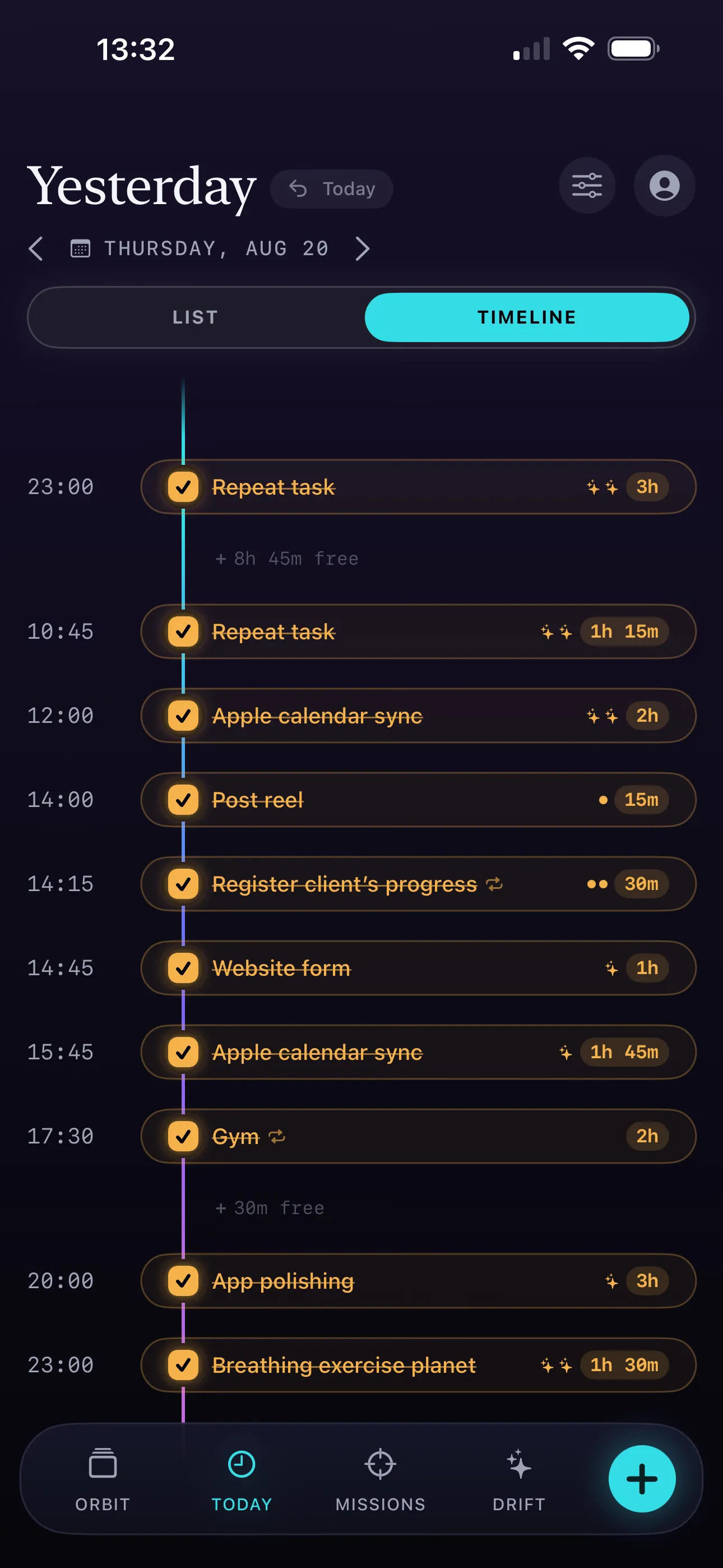
A task can sit in a day three ways: unscheduled (no date at all), date-only (“sometime today,” no clock time), or timed (a fixed slot). Only the timed ones land on the Timeline spine.
Conflict handling. Drag a task to overlap a neighbour and G-OFF asks before it moves anything — accepting cascades the rest of your day forward or back on the quarter-hour grid, and an Undo waits right after. It never rearranges itself silently.
Empty day. The offer depends on the day. A normal empty day leads with Schedule a Recharge and Draw from Orbit — protecting the day is offered before work for it. A declared recharge day instead invites Add an Anchor: one timed task, because a rest day with nothing booked feels like a blank space, not a plan.
Missions
What it does. Missions is where your work is filed — a Mission → Objective → Task browser, the app’s closest thing to a project view. Drag rows to reorder, theme each mission its own colour, and completed work settles into its own section. An objective’s target date carries a small achievement marker when it’s met.
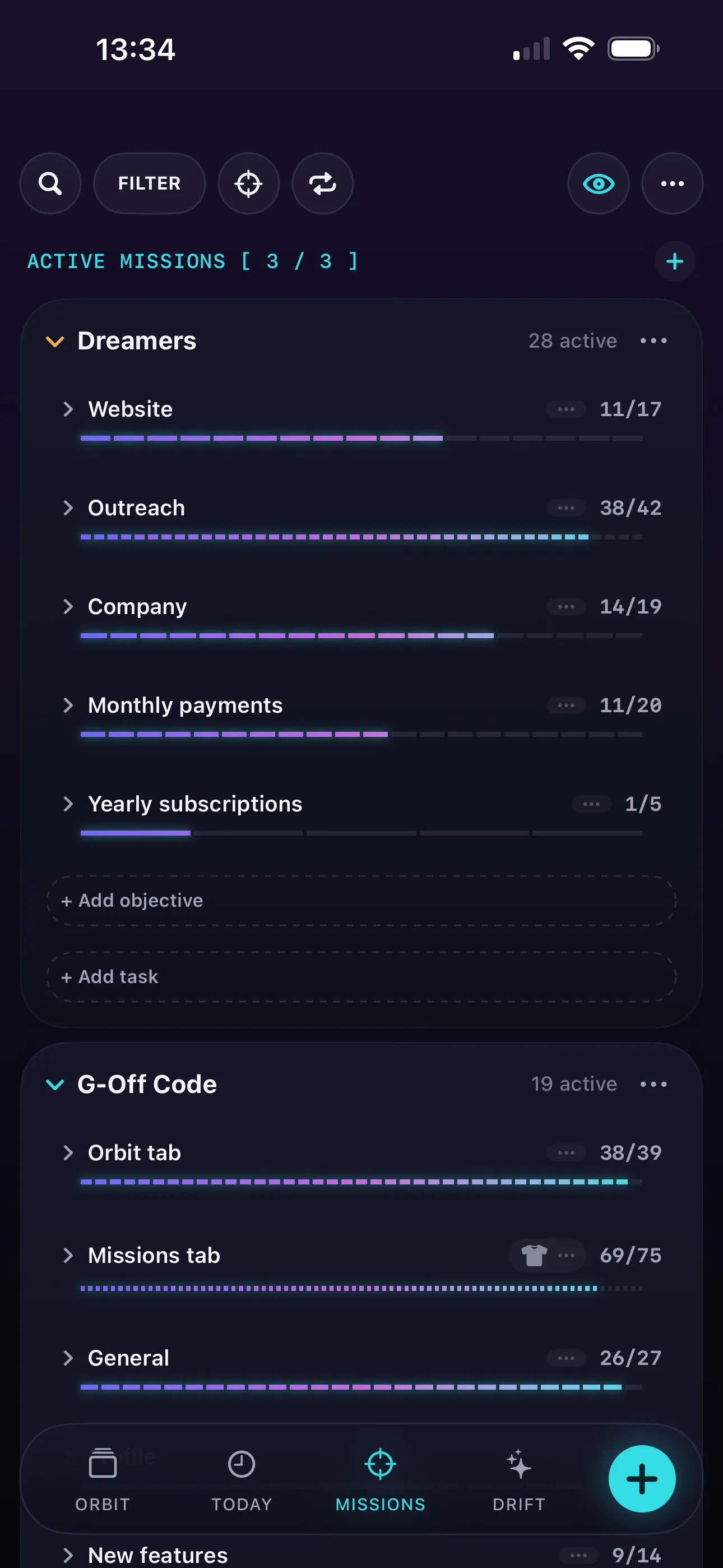
Filing walks the hierarchy. Pick a Mission that has Objectives under it and G-OFF prompts for one next (with a Skip option), so a task lands under the right Objective in one pass — a Mission with none just assigns and closes. Finished Missions and Objectives stay findable: they sort to the bottom with a muted gold accent, so an old project can still take a new task without hunting for it elsewhere.
The Science: Holding your priorities in mind is its own load. A hierarchy that files everything for you — and keeps finished ones findable — takes that work off you, for the same reason Target Lock helps: it stops you from having to re-decide what matters.
Quick Adjust
What it does. Tap the start time or duration pill directly on the timeline. A small menu pops up letting you modify the time or length of the task without opening the full edit window.
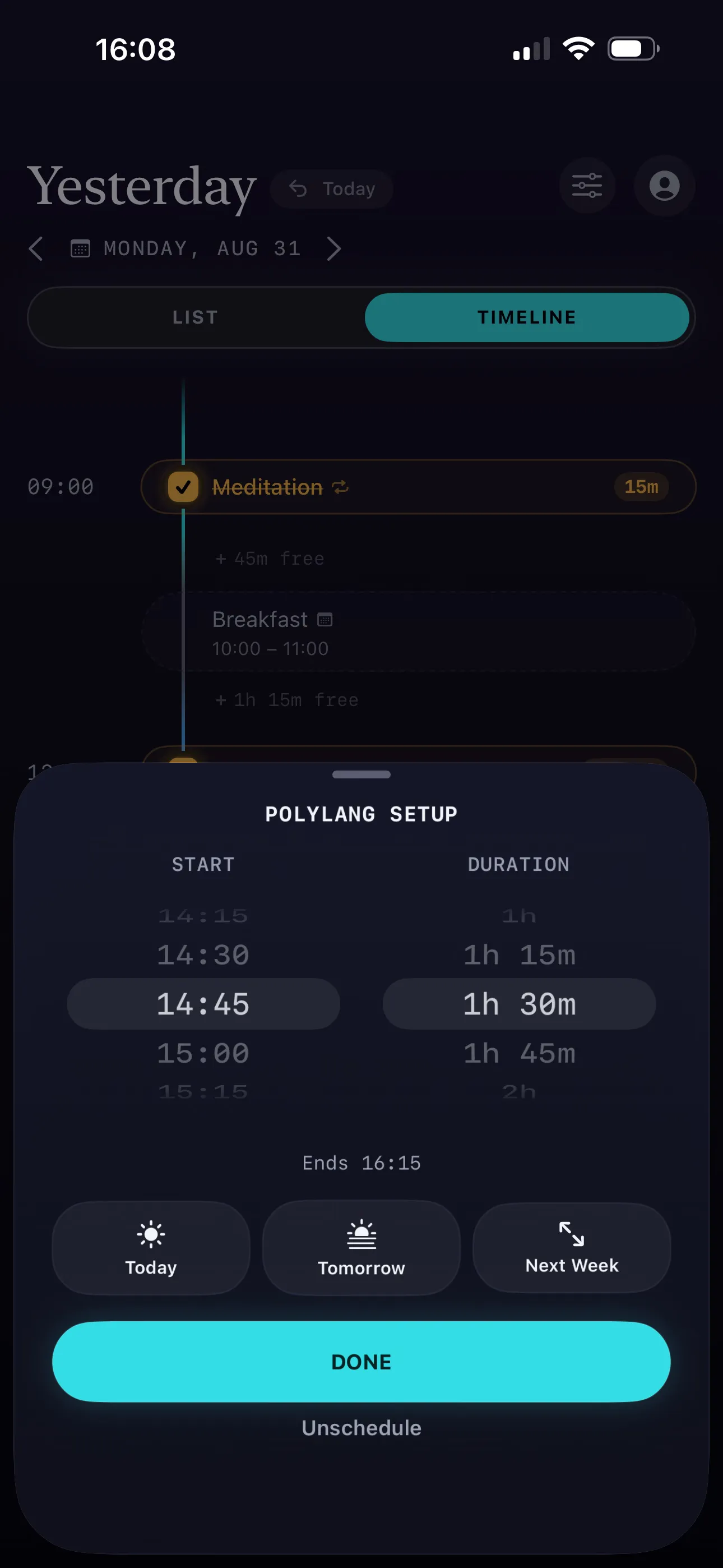
Score. The algorithm dynamically re-sorts your day, letting you shift your schedule without any penalty to your score, provided the task stays within today.
The Science: “Time blindness” makes rigid scheduling anxiety-inducing. Allowing frictionless micro-adjustments provides safety and prevents the paralysis that occurs when an ADHD person misses a strict start time. A schedule that has to stay exactly as planned turns into its own kind of demand — letting it move keeps today a plan you’re working, not a record of what you missed.
Unfinished vs. Scheduled
What it does. Separates tasks you missed (Unfinished) from tasks planned for today (Scheduled). Tap the header to fold the group away. And unlike a list that just keeps growing, today itself gets redrawn as things move — it’s never a fixed record you’re stuck looking at.
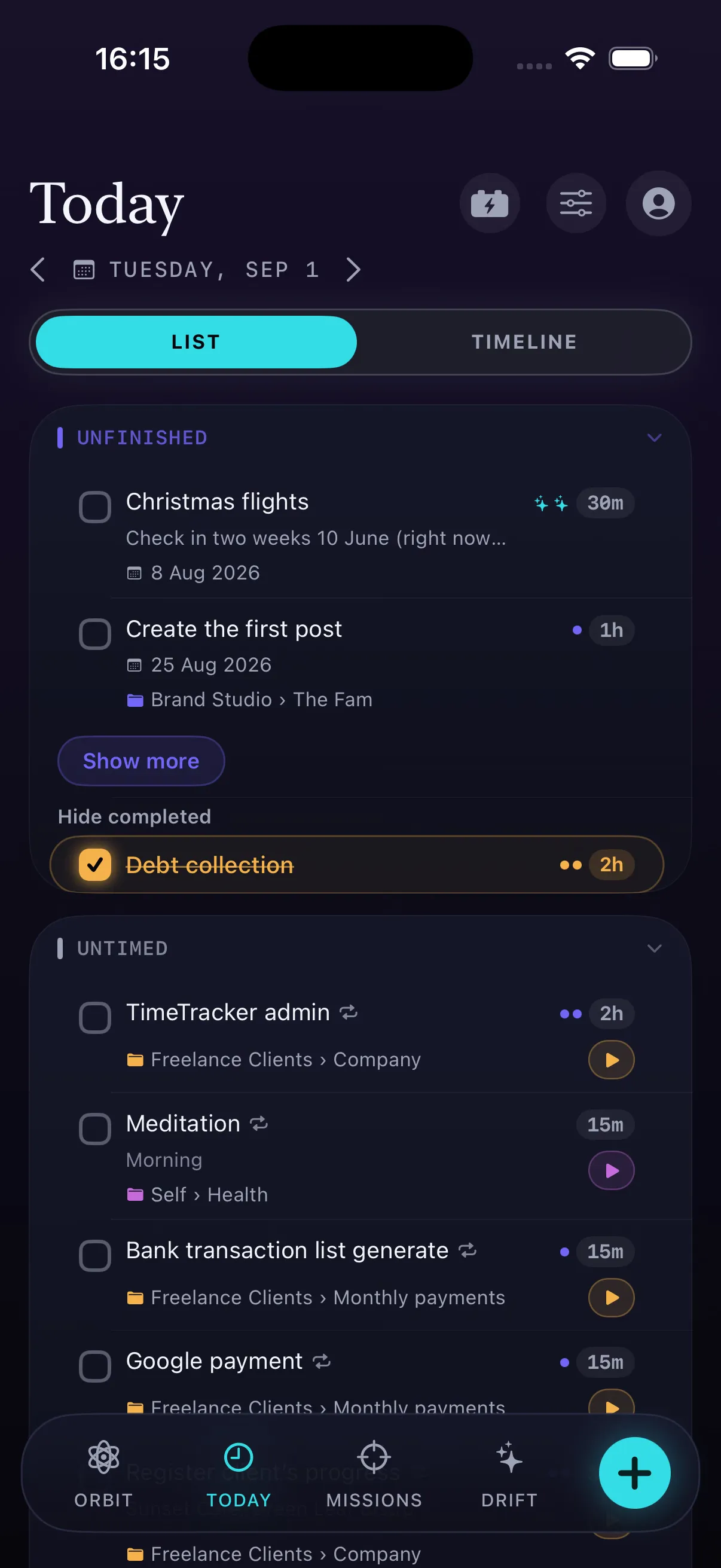
Score. Unfinished tasks drag your score down as accrued friction.
The Science: A pile that only ever grows is a demand in its own right — every task added sits next to yesterday’s misses with nothing to tell them apart. Unfinished items are kept slightly less visible to prevent shame and overwhelm, and nothing about them is tallied. Instead of demanding you do them now, the system waits until you have high momentum and recommends them via Clear Backlog, when you’re actually ready.
Readiness Rating
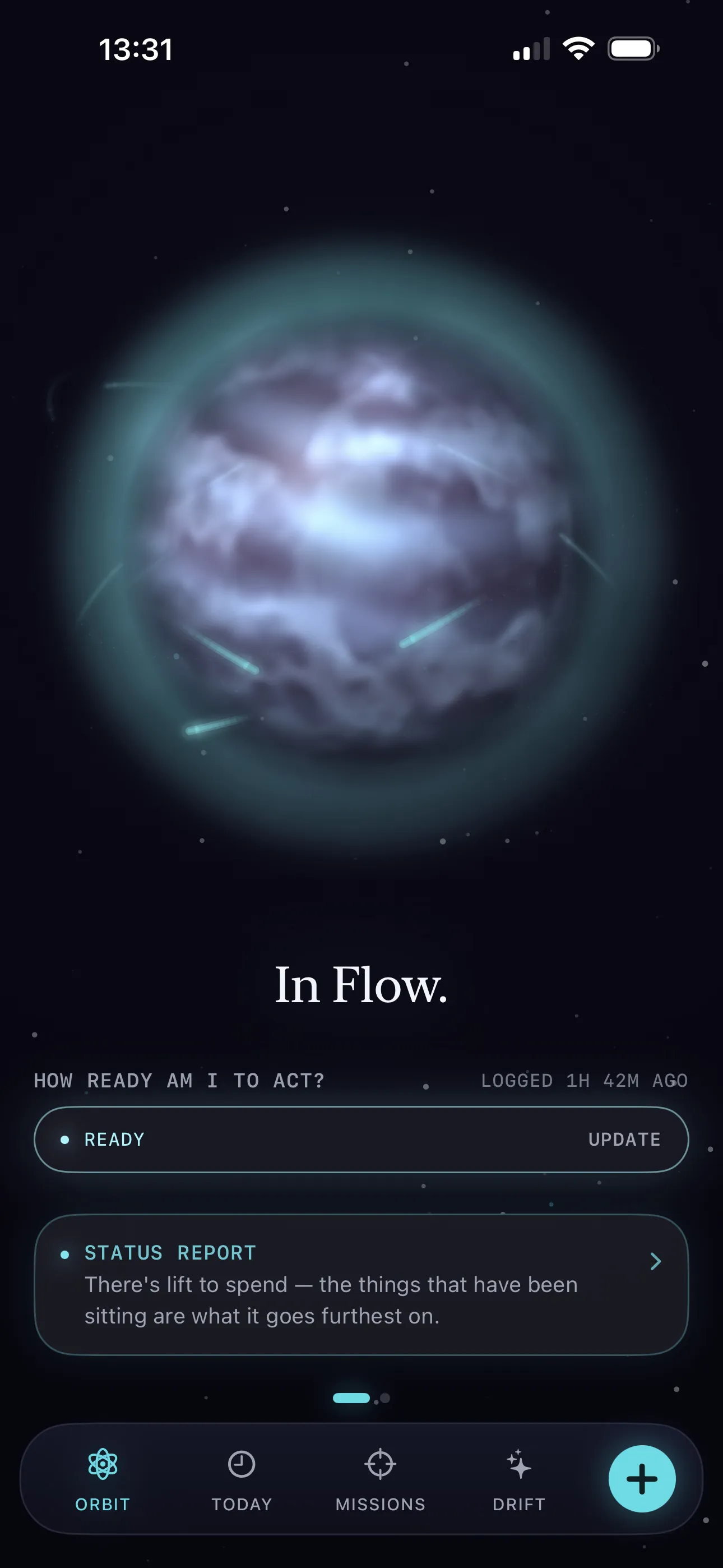
What it does. Tap one of the five marks on the Orbit screen — Heavy, Weighted, Neutral, Light, Clear — to log how capable and ready you feel right now. It fades on its own over a few hours, so you can update it any time your energy shifts.
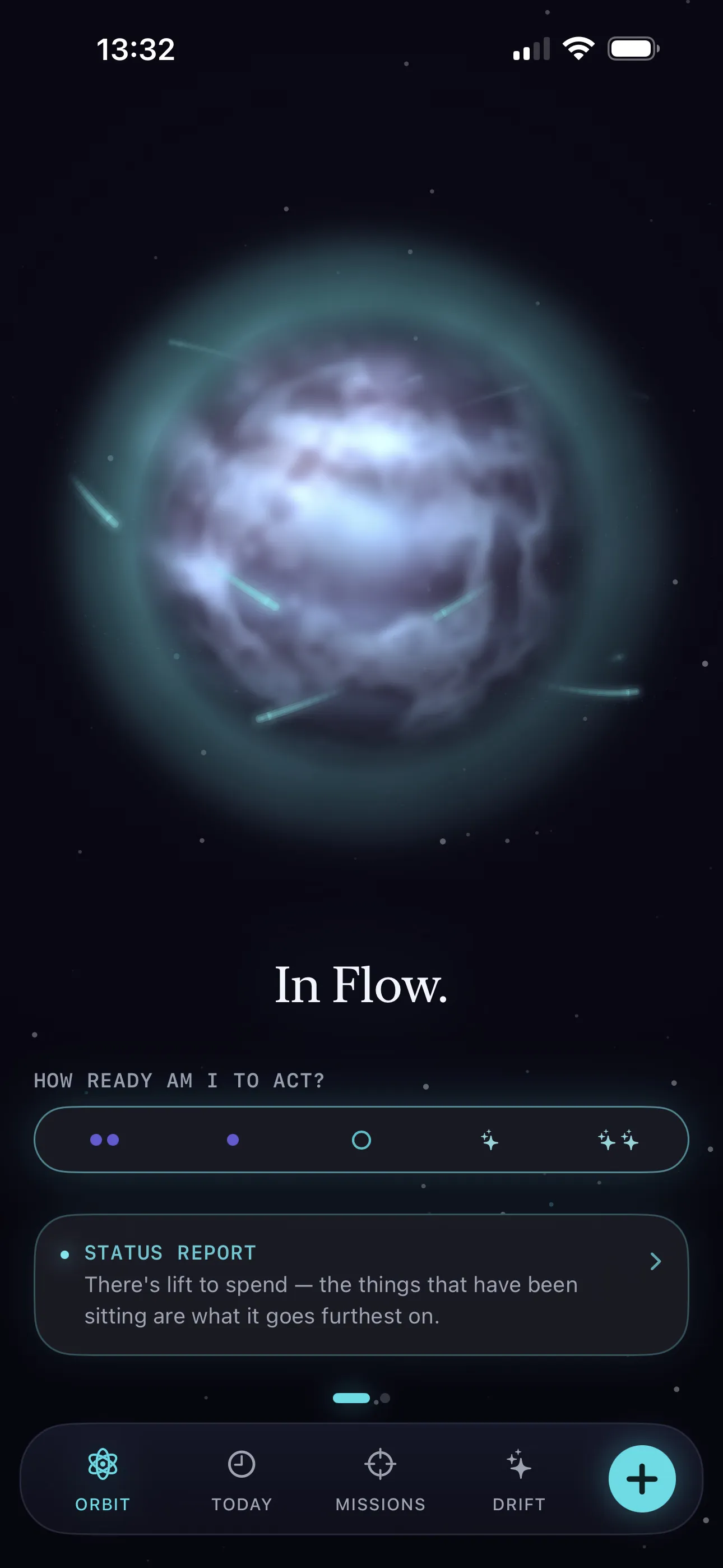
Score. Your rating gently nudges the overall reading to match your energy, and eases out naturally as real momentum takes over.
A deeper, valence-based check-in also feeds this. If you connect Apple Health, its own State of Mind logging populates a fuller read of your day and mutes the quick rating for the rest of it, rather than stacking on top. There’s no separate check-in screen inside G-OFF today.
The Science: Interoception — the ability to sense your own internal physical and emotional states — can be impaired in ADHD. A deliberate pause to assess your readiness builds self-awareness and aligns the app’s expectations with your actual capacity. It’s also the input that lets G-OFF adapt to the capacity you have that day, instead of holding you to a fixed idea of what “should” get done.
Rituals
What it does. When your rating (or a Health check-in) reports a genuinely Heavy state, the line under your planet swaps its action to “Run a Ritual” — a short, zero-decision physical reset: drink water, stretch, step outside, splash cold water, open a window, box breathing, or one more, rotating by day.
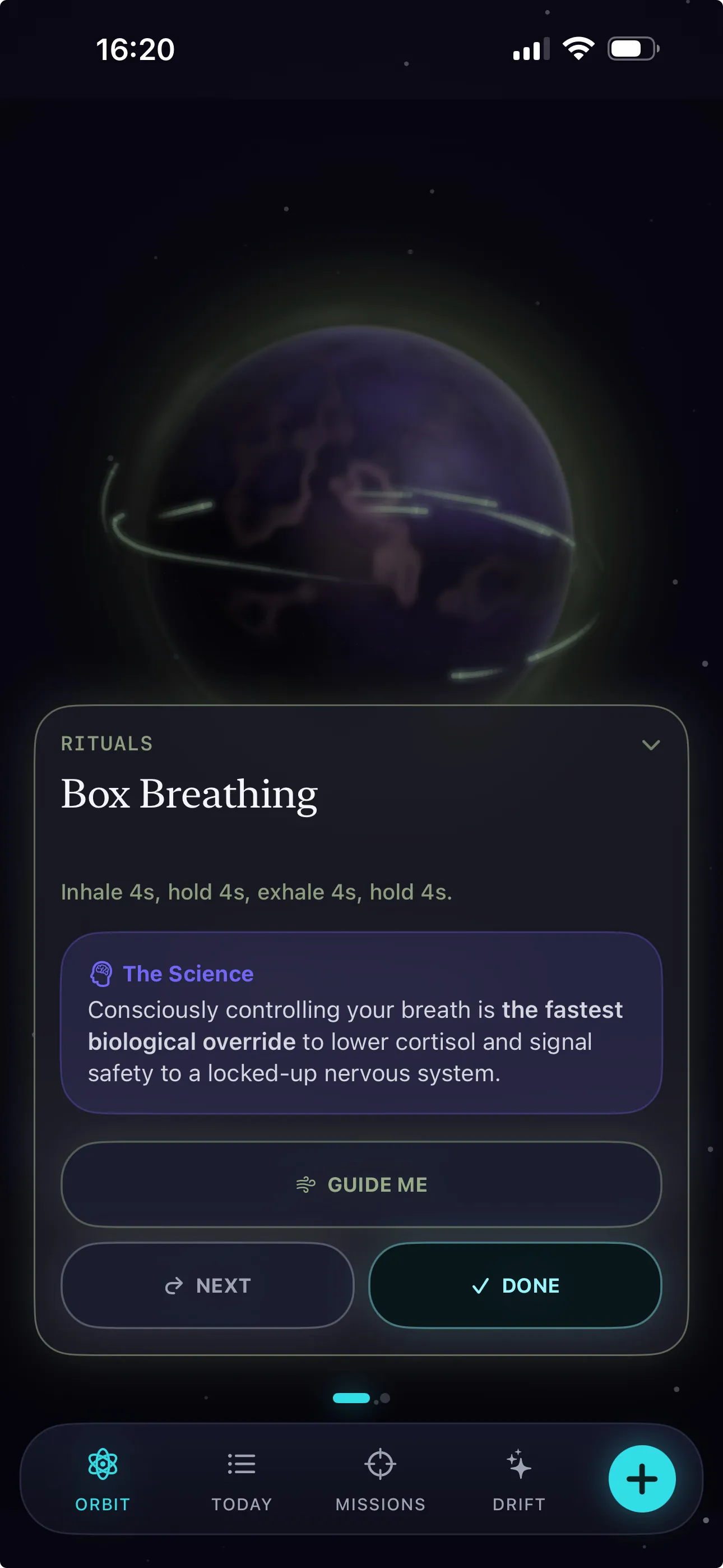
Score. Rituals are only ever offered on a stated Heavy reading — never by the gravity score alone. Completing one shows up as a same-day badge on Today.
The Science: Task paralysis under a genuinely heavy state isn’t laziness — it’s executive function with nothing left to spend on a decision. Rituals sidestep the decision entirely: a purely biological state change (hydration, breathing) generates the initial spark needed to break the freeze, without asking for a plan first.
Breathing Reset — Planet Breathing
What it does. Double-tap the Living Planet in Orbit (the primary trigger), or select Box Breathing from the Rituals menu, to launch a guided breathing reset. The planet becomes the instrument.
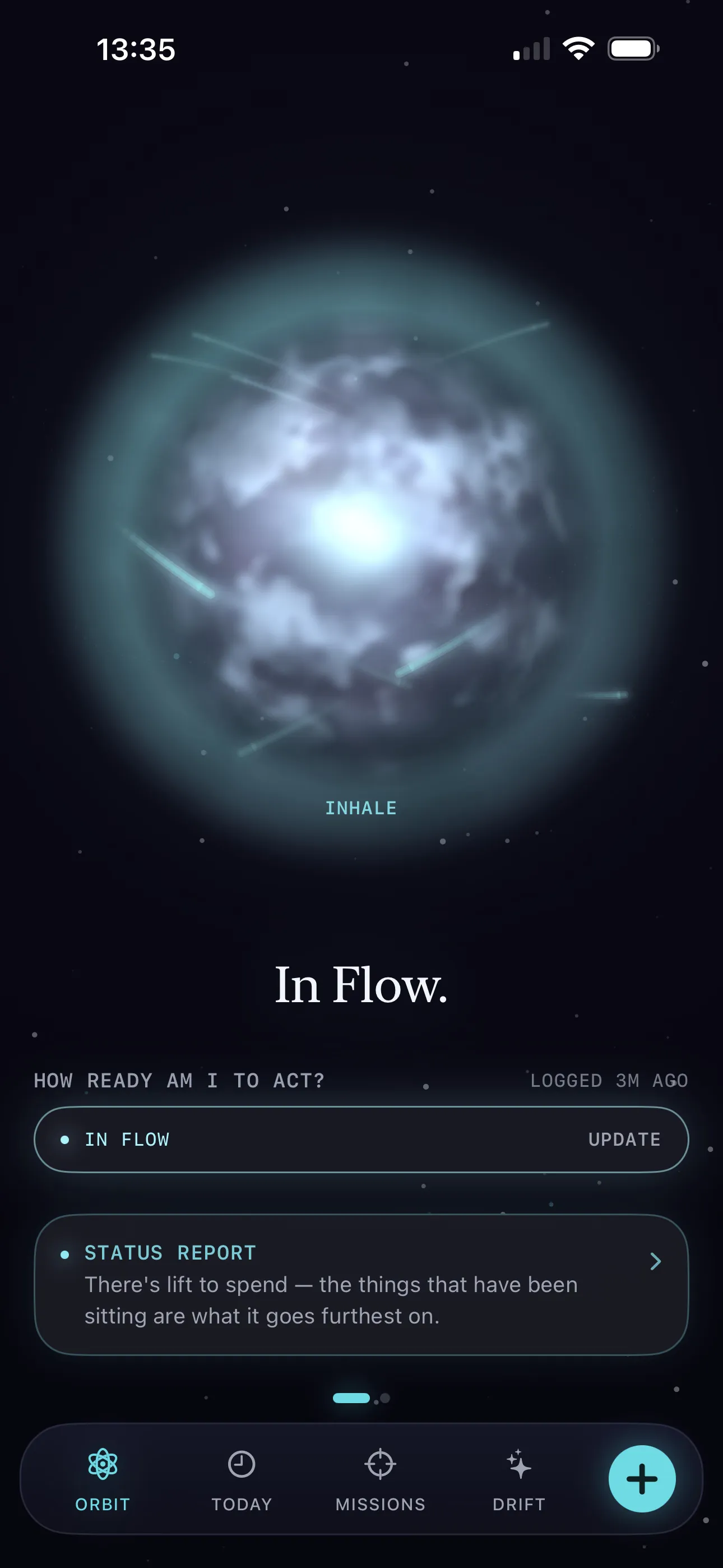
The session follows a 4-4-4-4 breath cycle — Inhale · Hold · Exhale · Hold — for exactly 2 minutes (30 legs, 8 full rounds). The planet’s aura (glow) widens and narrows around the planet as the visual anchor. Soft haptic pulses mark each turn, so you can close your eyes and follow the rhythm entirely by touch if you need to. The phase word appears in plain text, so you can follow with your eyes shut. Includes a “Before the Reset” safety panel with contraindications: this is a tool, not a treatment, not therapy.
Score. This session writes nothing. No log entry, no momentum points, no score of any kind. The planet does not change state when you’re done.
The Science: A freeze state isn’t a willpower problem — it’s a nervous system condition that makes voluntary action feel physiologically unavailable. Paced breathing at a 4-second cadence activates the parasympathetic branch via respiratory sinus arrhythmia, measurably lowering heart rate and cortisol within minutes. The haptic rhythm anchor removes the cognitive demand of watching a timer, keeping working memory fully unloaded during the reset. By attaching this to the planet — the centre of the interface — G-OFF turns the same object that reads your state into the thing that helps change it.
Recharge Days
What it does. Tap the battery icon on a day to mark it entirely for rest. The day gets a label, so it doesn’t feel like wasted blank space. The whole day shifts to a warm amber ambient, and the timeline holds one color instead of escalating.
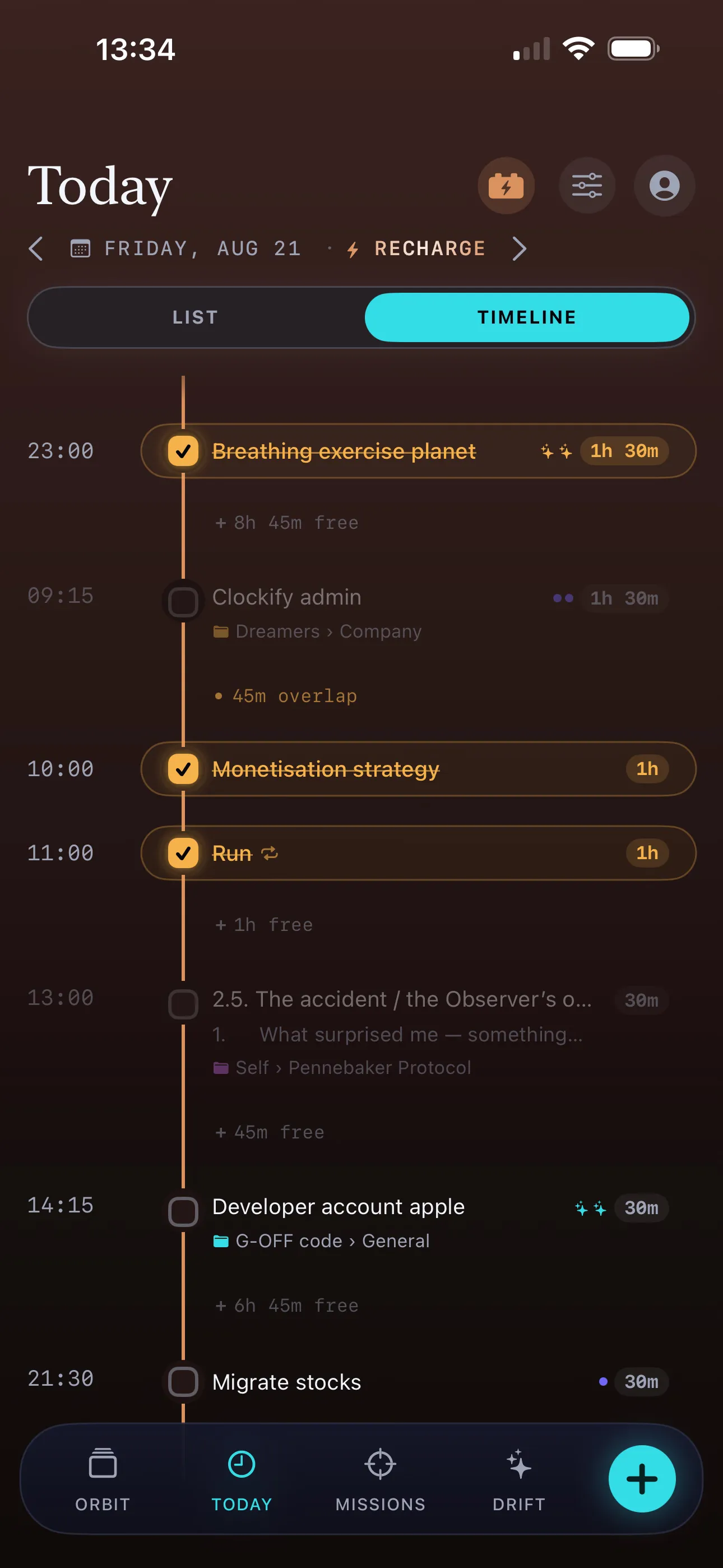
Score. Booking it in advance instantly lightens your current reading. The credit system: 3+ days ahead = full credit, same-day = 1/3 credit, backdated = no credit. The credit has two phases: an anticipation value that builds as the day approaches, and an afterglow that fades gradually after it passes. Book it further ahead for a bigger effect, and give it one timed anchor task rather than leaving it fully blank — both make the credit stronger. Anything you schedule on the day itself is excluded from your load too, so the one task that makes it a plan doesn’t make the planet heavier for having it.
The Science: People with ADHD often struggle with “rest guilt,” leading to chronic burnout. Deliberately scheduling downtime externalises the permission to rest, while a single anchor prevents the executive dysfunction that ruins entirely unstructured days. A day left open on the board is its own kind of standing demand — undeclared, but still sitting there. Naming it as rest, ahead of time, is what turns that blank space into a plan instead of an obligation. The copy about rest is selected by calendar, never by score.
Worth being explicit about: booking the day is what pays, not taking it. G-OFF never checks whether you actually rested. There is no audit.
The Drift
What it does. Tap the ‘+’ in the Drift tab to dump unassigned tasks, thoughts or ideas that don’t have a date or a mission yet. Swipe left on a row to erase (with undo) or complete it; swipe right to jump straight into scheduling or assigning it. Double-tapping completes it too. Retapping the Drift tab icon cycles the view between everything unfiled, just what’s missing a schedule, and just what’s missing a mission.
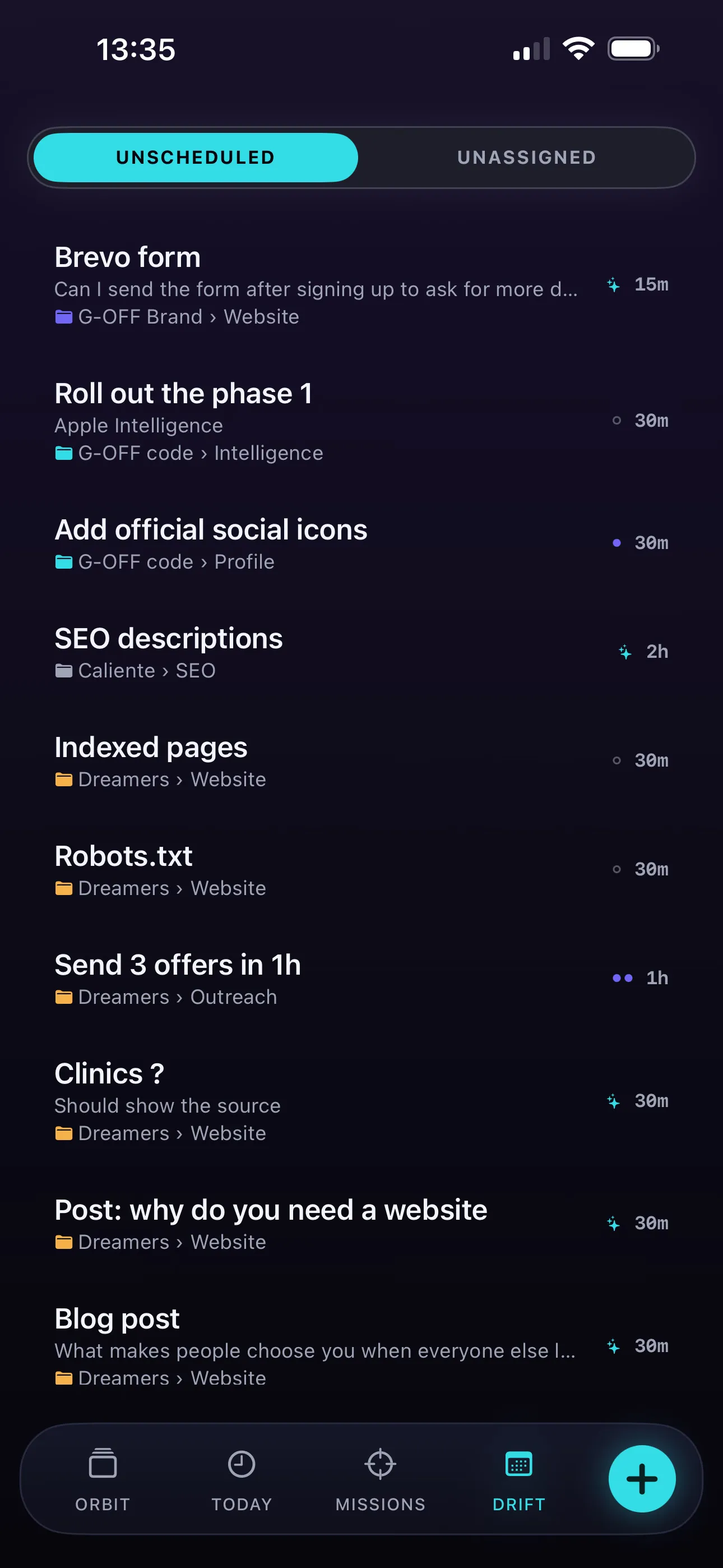
Score. Writing items here carries zero gravity. It does not make your planet heavier or affect your readiness in any way — this is the one place in the app guaranteed not to move the score.
The Science: The ADHD brain constantly generates ideas but struggles to categorise them instantly. A guilt-free brain-dump space lets you externalise working memory without the anxiety of a demanding to-do list.
Gestures and Shortcuts
Retap any tab for action:
- Orbit: Flips to the deck
- Today: Swaps between List and Timeline views
- Missions: Collapses/expands the view
- Drift: Cycles through filter modes (all unfiled, missing schedule, missing mission)
Other gestures:
- Double-tap planet: Breathing Reset
- Double-tap Drift row: Complete the task
- Tap gold badge: Un-tick (undo completion)
- Swipe left on Orbit deck card: Skip (sends to back of stack for this session)
- Swipe down on Orbit deck card: Unschedule (back to backlog, still in deck)
The Science: Reducing the number of taps and decisions required to perform common actions lowers cognitive load. Gestures provide immediate access to frequent actions without navigating through menus, respecting the ADHD brain’s need for frictionless interaction.
The Deck
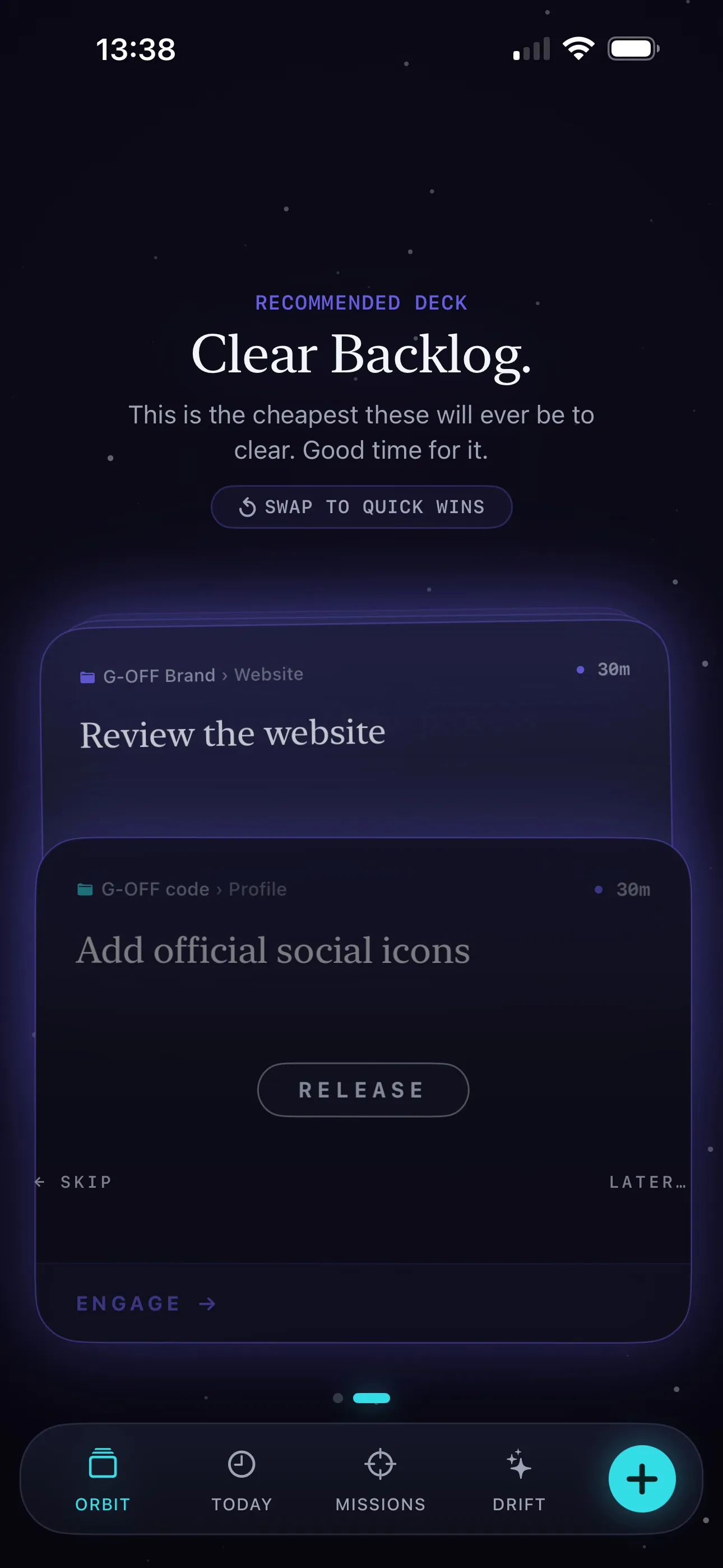
What it does. Swipe left from the planet to open your deck — a single card at a time, chosen for you based on your current reading. One card because weighing a whole board of options against each other is its own kind of work; G-OFF makes that first call instead.
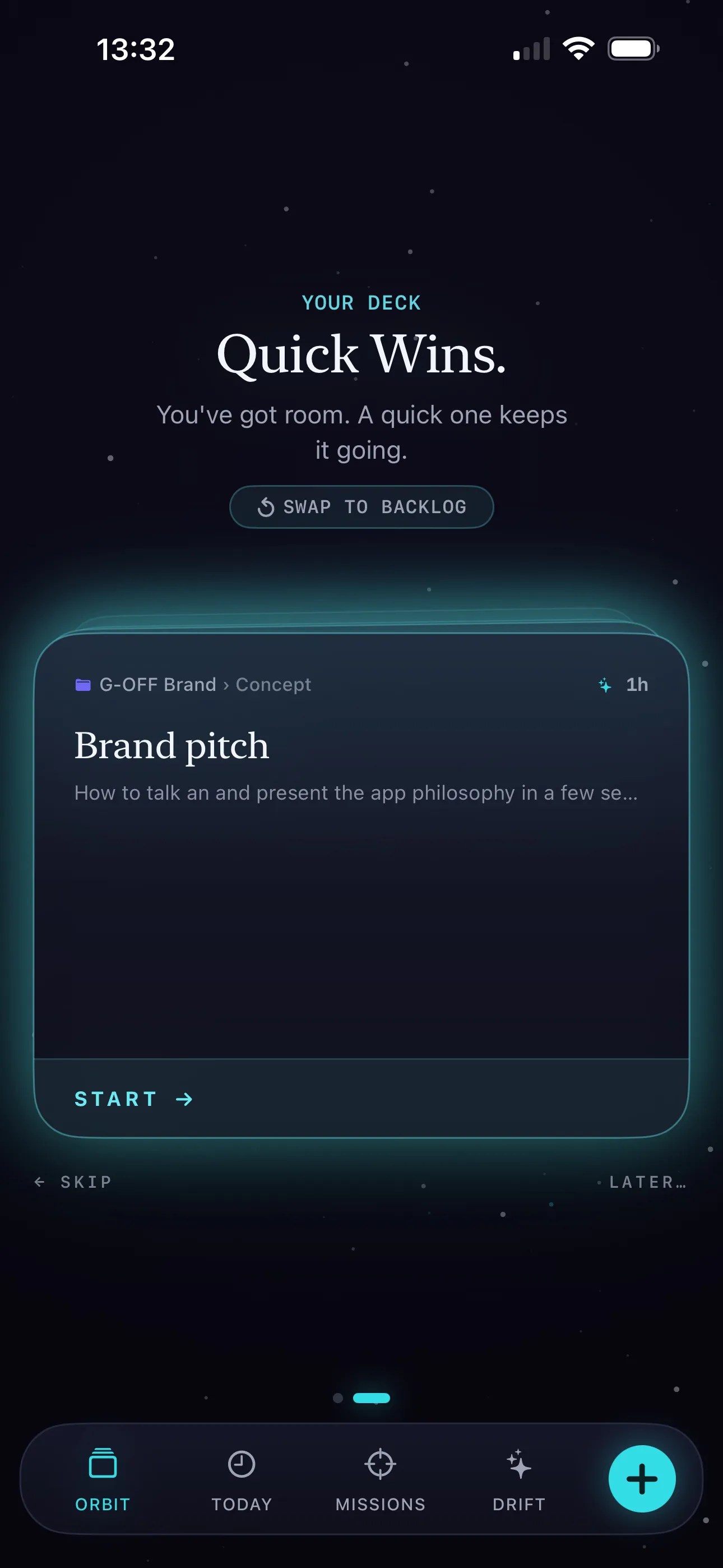
What appears. A heavy reading surfaces Quick Wins — lowest-friction tasks for when you need a spark. A light reading offers Clear Backlog — lightest first, with the oldest saved for last. On a stated standstill, the deck opens to a Ritual instead.
The Science: The engine philosophy is deliberately minimal: one card at a time. A full board requires holding every option in working memory simultaneously — exactly the cognitive load this app exists to reduce.
Quick Wins
What it does. Start a short, low-effort task pulled automatically from your deck — highest impact for the least effort first, rotated across your different missions so you don’t get several cards from the same project in a row. The deck only ever shows you one card at a time — weighing a whole board of options against each other is its own kind of work, so G-OFF makes that first call for you.
Score. Completing a quick win adds positive momentum, lowering your overall friction.
The Science: Starting is often the hardest part. A quick win bypasses executive dysfunction with a low-barrier task that triggers a hit of dopamine, creating the momentum needed for larger items.
Clear Backlog
What it does. Process older, unfinished tasks — offered when the app detects you have the energy to handle them. Cards come up lightest first, not heaviest — the path of least resistance, with the one that’s waited longest saved for last.
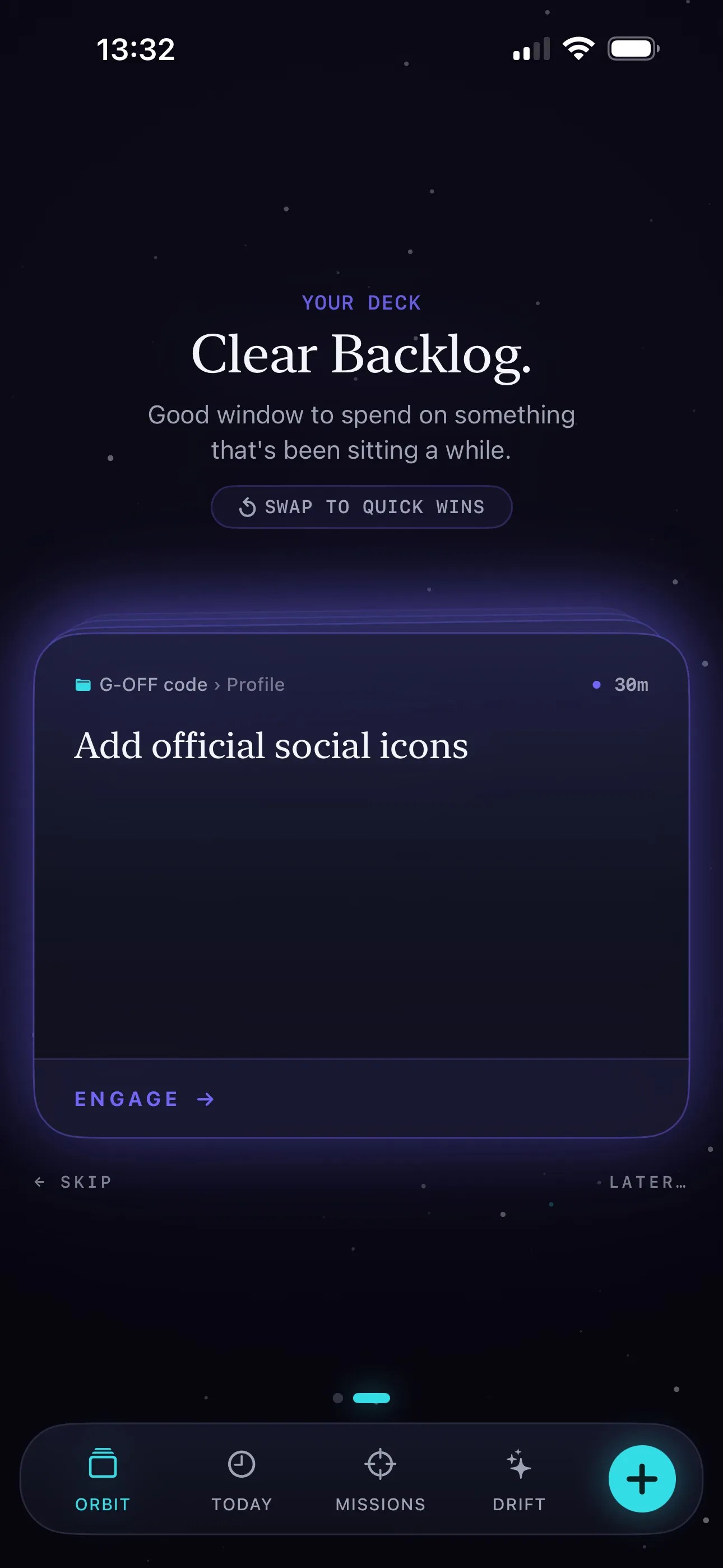
Score. Clearing backlog items pays down accrued drag, stabilising your long-term reading.
The Science: Backlogs induce shame and overwhelm, which causes avoidance. Using periods of high drive to clear them turns a source of anxiety into a dopamine reward without the usual guilt.
Repeats
What it does. Standing work gets its own list, reached from the loop icon in the Missions header. A repeat is a rule, not a task — it never gets “completed” itself, it just produces one task per cycle. There are two kinds, and the only difference is what happens to a day you don’t get to:
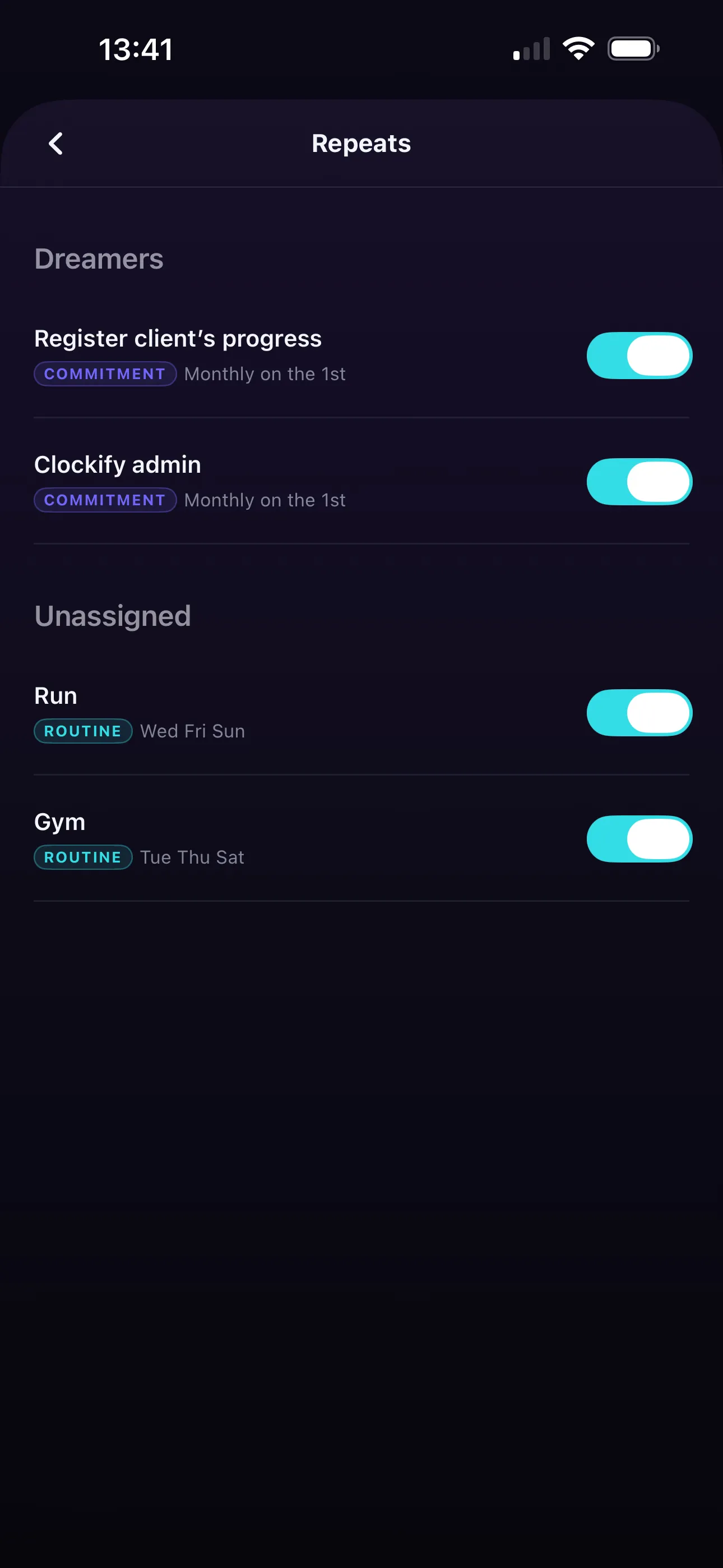
| Kind | What happens to a day you miss |
|---|---|
| Routine | Clears itself at 4am and comes back tomorrow. Nothing carries over, nothing is counted. |
| Commitment | Stays on the board until it’s done, growing heavier the longer it waits — exactly like any other task. |
A repeat can be set to mornings, afternoons, evenings, or an exact time. Before its window opens it waits out of the way in a collapsed group and adds no weight to your reading. Tap the checkbox if you’ve already done it, or the play button to commit to doing it now.
Score. Nothing here keeps score in the usual sense — no streak, no completion rate, no record of a day you missed. A Routine you skip leaves no trace at all; a Commitment simply waits, exactly like any other task would. Every repeat can be paused or stopped at any time, leaving whatever’s already on your board untouched.
Target Lock
What it does. Swipe right on any task to lock it — swiping left deletes it instead, with undo. Locking is also available from inside the task editor. Once locked, tap the target icon at the top of Missions to see only your locked tasks.
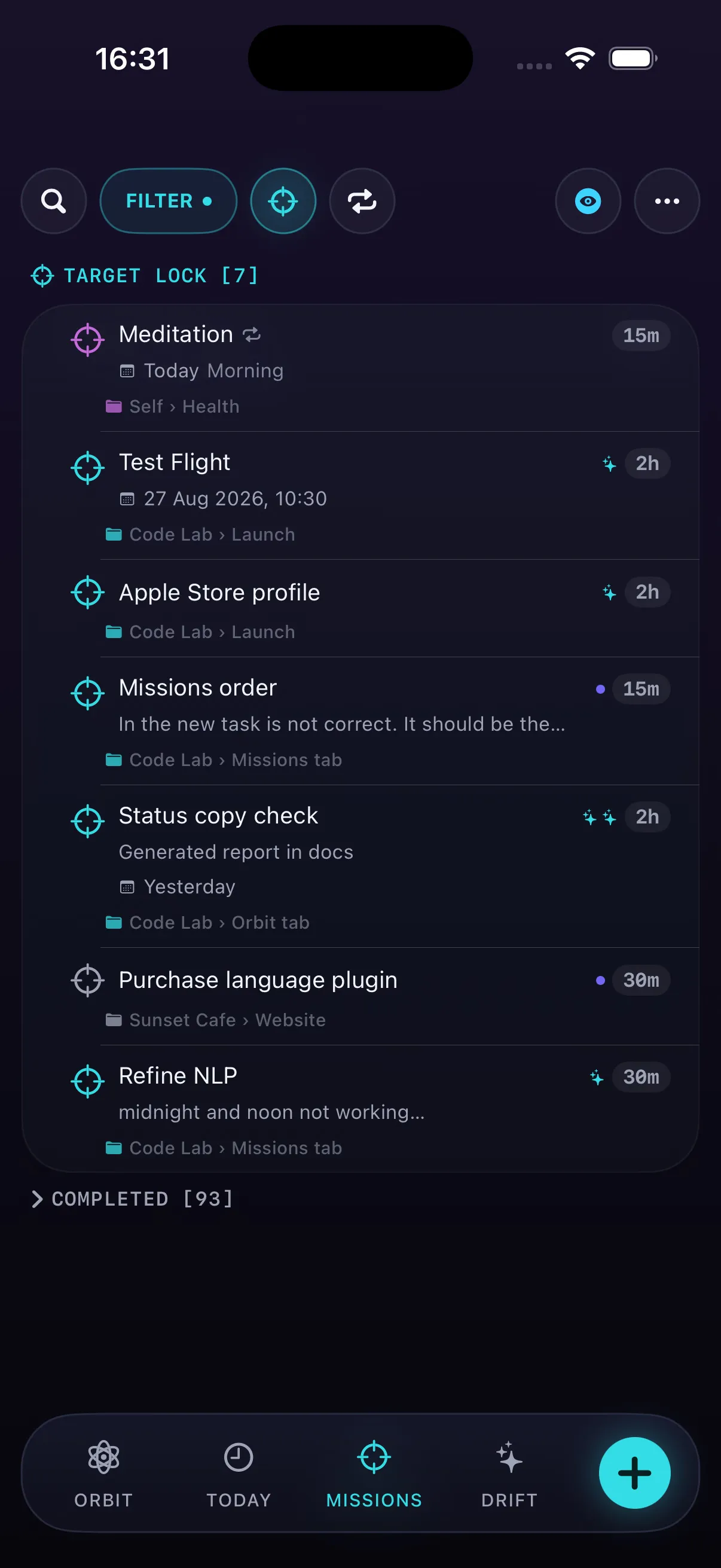
Score. A locked task carries significantly more weight (1.6× load) and counts even if it has no time assigned.
The Science: ADHD brains battle with object permanence — out of sight, out of mind. Locking creates a permanent visual anchor, reducing cognitive load and making sure your most critical target doesn’t slip away.
Skip, Unschedule & Later…
What it does. On an Orbit deck card: swipe left to Skip it — sends it to the back of the stack for this sitting only. Swipe down to Unschedule it — takes it off the calendar entirely and back to the backlog, still in the deck. Tap Later… for a deliberate second step: put it on a named day (Tomorrow, This weekend, Next week) instead of just releasing it.
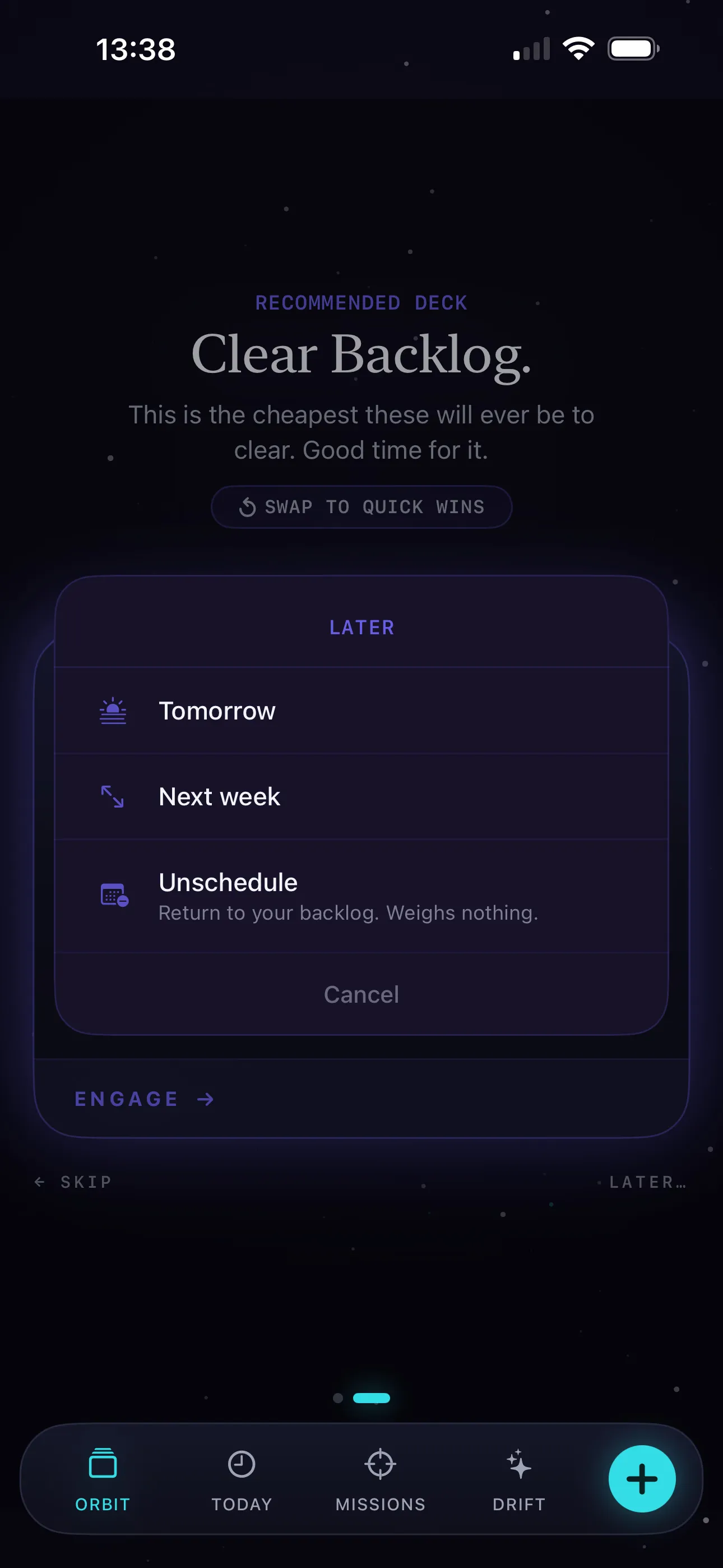
Score. Skip and Unschedule are both entirely free — zero impact, because unscheduled, unlocked work carries no weight at all. Later… gives the task a real date, so from that point it counts like any other scheduled task.
The Science: By separating “not right now” (Skip) from “off the board for now” (Unschedule) and “not today, but placed” (Later…), the app bypasses decision fatigue and momentary executive dysfunction without the guilt of abandoning a task.
Reading Breakdown
What it does. The status line beneath your planet — the “weather card” — is itself tappable. Tap it for a quick breakdown of the data driving your current reading: your sleep, what you finished, your current load. It’s the at-a-glance inputs; for the plain-language narrative, go to the Status Report below.
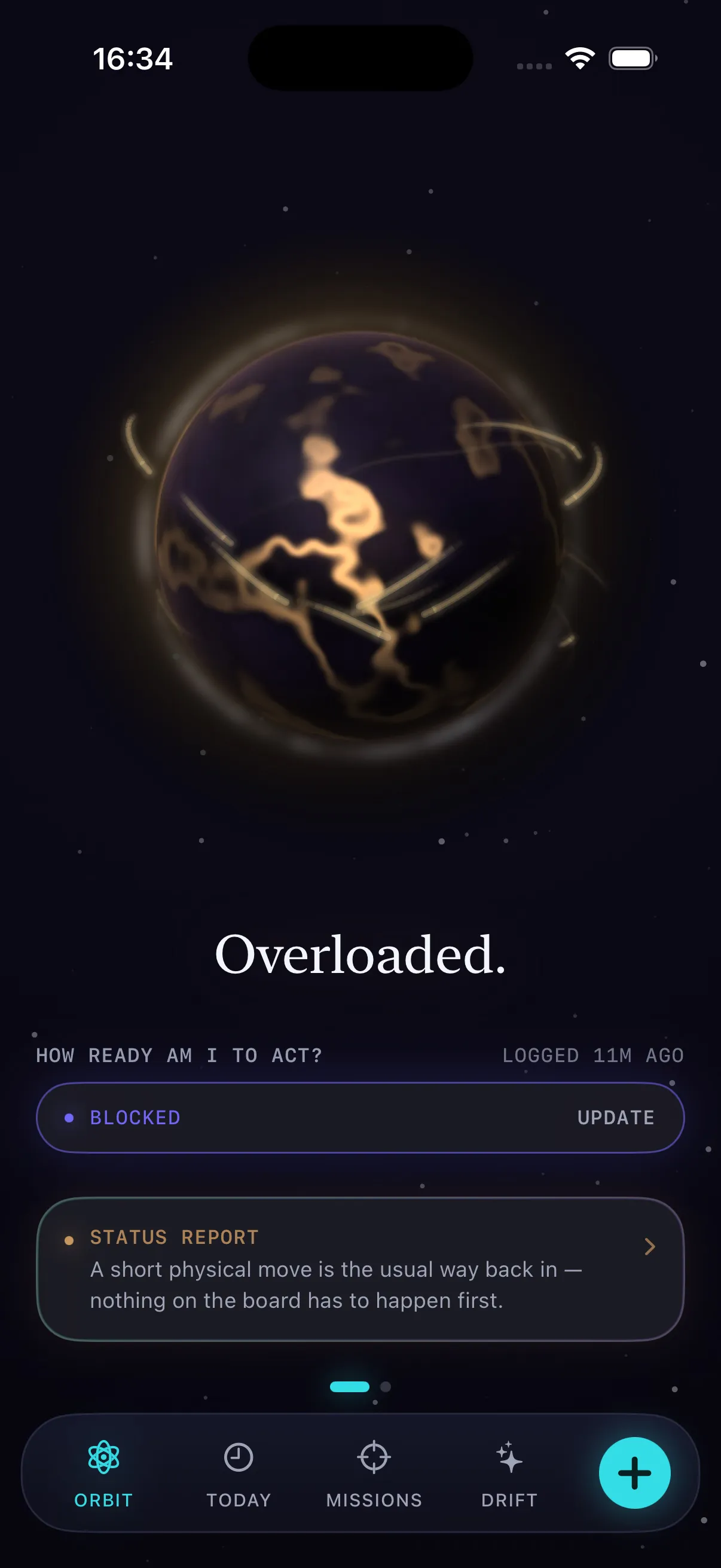
Score. This screen only explains your reading. It does not grade you or change anything.
The Science: Rejection Sensitive Dysphoria (RSD) makes many neurodivergent people hyper-sensitive to perceived failure. Transparent, objective data removes the emotional sting and creates a collaborative relationship with the system.
Status Report
What it does. A step deeper than the Reading Breakdown — it turns the raw reading into a plain-language summary of Situation, Impact, and Next Move: where you are, what it means, and what the system suggests doing about it. It also carries a “The Science” panel explaining the mechanism behind the reading and how the six inputs combine.
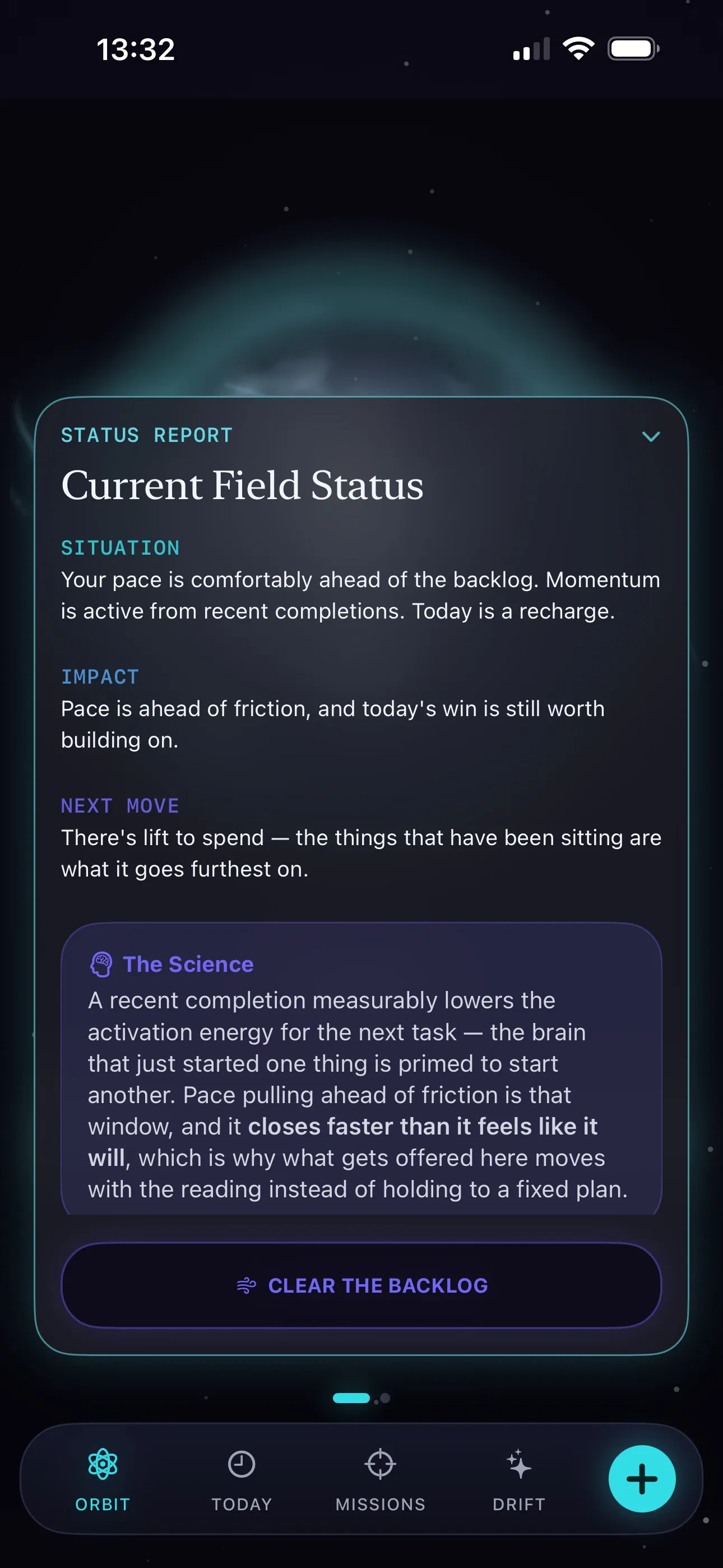
Score. Purely explanatory. No changes to your reading, no logging.
The Science: Externalising your state in clear, non-judgmental language reduces the cognitive load of self-assessment. The Status Report translates the raw reading into actionable insight without adding emotional weight.
How the reading works
Six things feed the number. None of them can carry it to an extreme alone — that’s deliberate. The extremes themselves are earned consensus states: −100 requires agreement across negative self-report, heavy committed load, aged unfinished work, and near-zero execution (four channels, five with Health).
- How you say you feel. Your Readiness Rating, and the Detailed Log if you use it. Fades over hours, and resets at 4am rather than midnight, because a day that ends at 2am is still yesterday.
- Momentum. What you’ve finished over roughly three days, weighted toward the recent, plus a small streak bonus. This is the only term that can make the planet genuinely light. Completed work becomes a glowing gold badge that stays visible on Today — it doesn’t vanish. Momentum over ~3 days is the only term that makes the planet genuinely light. The Friction Buster haptic fires when you finish tasks that have been stale for 3+ days.
- Today’s load. Duration × how draining a task is × how committed you are to it. Commitment tiers: Target Locked 1.6×, Timed today 1.0×, “Sometime today” 0.65×. Loose planning is charged less than firm planning.
- Unfinished work. Things whose day has passed, aged gently. Slipping by an hour inside today doesn’t count here.
- Your body. Sleep against your own baseline, plus credit for a recent workout, if you connect Apple Health. Health changes the mix, never the depth. Missing data is never counted against you.
- Booked recharge. A rest day you’ve scheduled ahead, paying from the moment you book it. Anything scheduled on the day itself is excluded from this term too.
Finished work earns a gold badge that stays on Today, and a completed Ritual earns its own same-day badge — a visible record of what you did, without a count or a streak.
Writing something down never makes the planet heavier. Unscheduled,
unlocked work generates no drag at all. It only starts to weigh once you commit
to it by giving it a day or locking it. This is enforced at the physics layer:
unscheduledBacklogIsWeightless is a unit test that must pass.
The one thing worth understanding
Every suggestion G-OFF makes tracks the capacity you have available, not what you’re behind on.
A heavy reading gets you the easiest thing on the board — Quick Wins. A light reading gets you the backlog, because momentum is what makes settled work cheap to clear.
Pushing hardest when you’re furthest behind is the pattern this app exists to break.
Apple Health
Optional, read-only, and off until you turn it on. G-OFF reads sleep, workouts, steps, mindful minutes, daylight and state of mind to sharpen the reading. It never writes anything to Health, and nothing leaves your device.
Connecting Health re-weights the reading rather than diluting it — a full range is reachable with or without it.
To change what it can see: Health app → your profile picture → Apps and Services → G-OFF. Apple requires permissions be managed there, not in G-OFF.
Apple Calendar
Optional, and off until you turn it on in Profile → Connections. It works in two directions that never meet.
Projecting out. Turn on Show Repeats in Apple Calendar and your repeats are written into a dedicated “G-OFF” calendar the app creates — never into a calendar you already had. They go out as repeating patterns, not a list of individual occurrences, so there’s no trail of past instances left sitting unticked. A repeat set to a part of the day shows as a free band, not a busy appointment — it’s a zone, not a deadline. A second toggle, Project All Timed Tasks, optionally sends your one-off timed tasks too — today and tomorrow only, so the calendar shows a plan, not a backlog. G-OFF owns what it writes: edits made in Apple Calendar are replaced on the next pass, so editing happens in G-OFF. Deleting the “G-OFF” calendar is read as “stop,” and G-OFF honours it. Updates are held a couple of minutes after your last change, by design — that’s when the board moves most and the calendar matters least — though flipping a toggle in Connections syncs immediately.
Reflecting in. Pick which of your other calendars are allowed to speak — nothing is selected by default. Their timed events appear on Today as fixed, read-only blocks that never affect your gravity reading, and the scheduler routes around them instead of dropping a task on top of a meeting. All-day entries show as context for the day, not work in it. G-OFF’s own calendar can never be reflected back in, and attendee names, emails and notes are never read.
Nothing written out is ever read back in, and none of it leaves your device — this is a connection between two apps on your iPhone, not a sync to a server.
Your data
Everything lives on your device. There is no account, no server, and no sync. G-OFF has no networking at all.
That has one consequence worth planning around: if you delete the app, the data goes with it.
So G-OFF keeps a rolling set of backups for you:
- A snapshot is written automatically once a day, saved into the app’s folder in
the Files app (
On My iPhone → G-OFF → Backups). - The five most recent are kept. Older ones are deleted automatically, so the folder never grows without limit.
- That folder is included in your iPhone’s own iCloud device backup, so a restored phone brings your board with it.
- Profile → Back Up Now takes a snapshot on demand.
- Profile → Export Backup shares a copy anywhere you like.
- Profile → Import Backup restores from any of these files.
Profile → Last backed up tells you when the newest snapshot was taken.
If you’re about to do something you’re unsure about, tap Back Up Now first.
Profile Screen
What it contains. Profile is your command center for reflection, settings, and connections. It holds:
- Orbit Rhythm: A thirty-day wave visualization of your daily gravity reading, with a short summary describing the shape of the stretch in words — never a count, percentage, or streak. Also shows whether you booked recharge days along the way.
- Activity Log: A thirty-day list of what you finished, grouped by day.
- Backup & Restore: Manual backup triggers, export/import, and restoration from previous snapshots.
- Connections: Manage Apple Health and Apple Calendar integration.
- Guide & Feedback: This online guide, Replay Onboarding — re-runs the first-launch walkthrough without touching your tasks — and Reset In-App Hints, which puts every hint back to undiscovered and turns them on again if you’d switched them off.
The Science: Reviewing your patterns without judgment builds self-awareness while avoiding the shame that comes from traditional productivity metrics. The Orbit Rhythm visualization shows the ebb and flow of your energy, not a verdict on your performance.
Beta feedback
Profile → Send Beta Feedback opens an email with your build number already in the subject line, so you don’t have to look it up.
Or write to hello@g-off.app directly.
Useful things to mention: what you expected, what happened, and roughly when. If the app crashed, TestFlight has already sent us the crash log — you don’t need to describe it.
Blunt feedback is more useful than kind feedback. If something felt bad to use, that’s the most valuable thing you can tell us.
Please read this
G-OFF is a productivity tool, not a medical device. Nothing in it is diagnosis, treatment, or medical advice.
The research referenced throughout this guide and in the app describes patterns commonly reported in ADHD, and informed how the features were designed. It is not an assessment of you, and the app is not making claims about your health. If you’re looking for clinical support, please talk to a qualified professional.